

WordPress 7.1 Is Rearranging the Admin Table: What Site Owners Should Test Before August 19
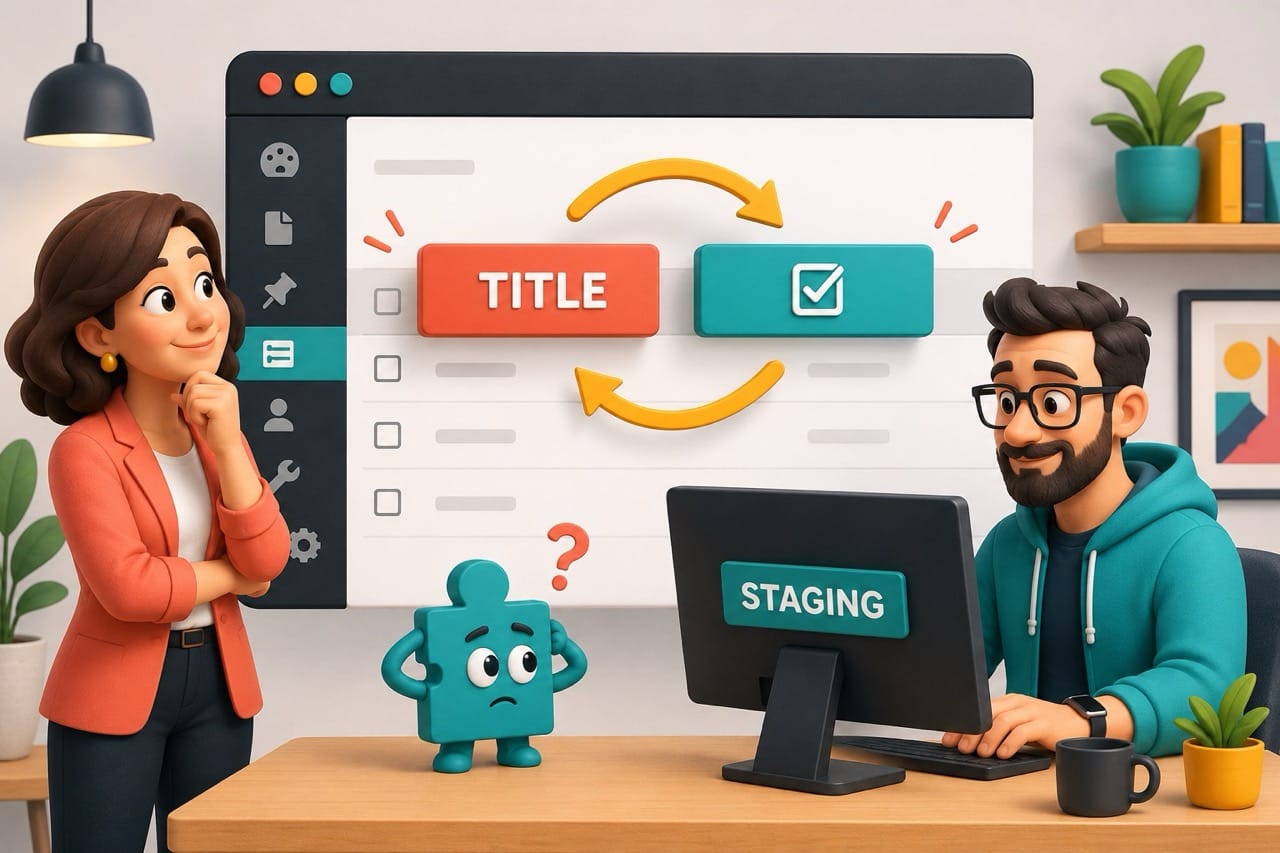
WordPress 7.1 is scheduled for release on August 19, 2026, with an accessibility improvement that changes the HTML behind several familiar administration screens.
For most website owners, the update should pass without incident. The change is narrow, and it does not directly alter the public-facing design of a website. However, plugins and custom tools that modify WordPress post-list tables may need updates of their own.
Here is what is changing, who may be affected, and what businesses should test before updating their live websites.
What WordPress is changing
Inside WordPress, the Posts and Pages screens use tables to organize content. Each row contains a checkbox, title, author, date, and any extra columns added by plugins.
Until now, WordPress has treated the checkbox column as the row header. That creates a poor experience for people using screen readers because the software may announce “Select All” or describe the checkbox before giving the useful information: the post title.
WordPress 7.1 moves the row-header role to the title column and adds an accessibility label containing the post title. The checkbox column becomes a regular table cell. Responsive styling for collapsed cells is also being updated.
The WordPress Core development ticket confirms that the issue had remained open for 11 years and that the change is assigned to WordPress 7.1.
Which websites could be affected?
Themes that only control the public-facing website are not affected by this particular markup change.
The main compatibility risk involves plugins and custom administration tools that modify post, page, or custom-post-type lists. A tool may be affected if its CSS or JavaScript expects the checkbox column to use a specific HTML element, or expects the title column to use the old structure.
Examples may include:
- Plugins that add SEO, ecommerce, membership, or workflow columns
- Custom admin buttons and bulk actions
- Editorial or approval systems
- Tools that add filters to content lists
- Bespoke WordPress dashboards
- Internally developed plugins, including AI-generated custom code
Popular plugins may already be preparing compatibility releases. Still, a plugin’s popularity is no substitute for checking its current changelog.
Could this affect SEO or the public website?
The markup change itself is inside the WordPress dashboard. It does not directly change the HTML that customers or search engines see on the public website.
The indirect risk is operational. If an important admin control stops working, a team may struggle to update service pages, edit metadata, publish content, manage products, or complete its normal review process.
That can become an SEO or conversion problem if broken workflows delay important updates or cause incorrect information to remain online.
Why the accessibility improvement matters
Accessibility work is sometimes treated as an optional design enhancement. In this case, the existing table structure can prevent screen-reader users from quickly identifying the content represented by each row.
Moving the semantic row header to the post title gives users the information they need earlier and more clearly. It is a sensible correction to the way WordPress describes its own interface.
Compatibility testing does not oppose the accessibility improvement. It helps businesses adopt the improvement without disrupting the tools their teams rely on.
What business owners should do before August 19
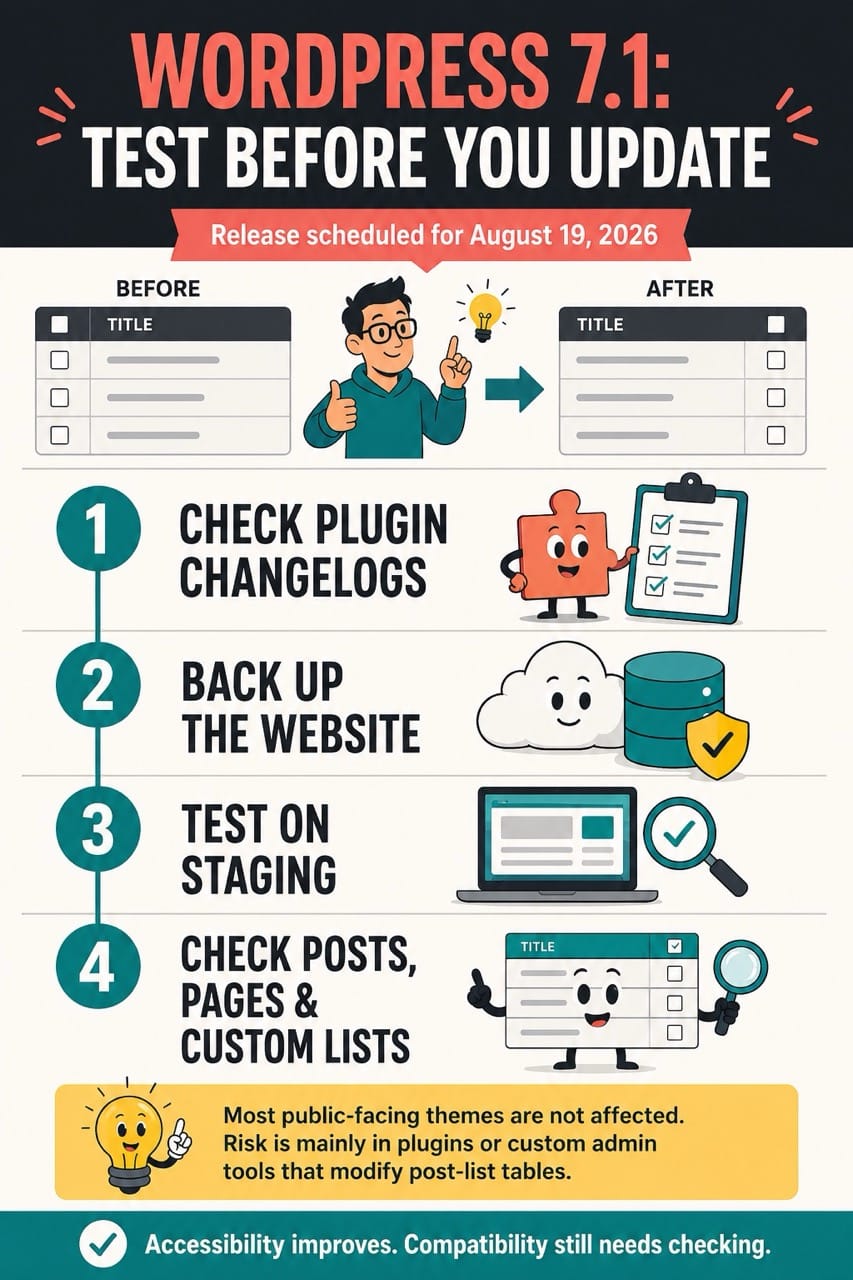
Start by identifying plugins or custom features that alter the Posts, Pages, Products, or custom-content screens. Pay particular attention to added columns, inline controls, filters, bulk actions, and custom responsive layouts.
Next, review the changelogs and support pages for those tools. Look for WordPress 7.1 compatibility notes or recent releases connected to admin list tables.
Create a complete backup before updating. The backup should cover both the website files and database, and the recovery process should already be understood.
Run the update on a staging copy of the website. Test the actual tasks your team performs, rather than simply checking whether the dashboard loads.
Open Posts and Pages, try editing content, use custom filters, test bulk actions, inspect plugin columns, and check any custom post types. Test narrower screens if staff members manage the site from tablets or phones.
Only update production after the normal publishing workflow has passed those checks.
What to check after the live update
Once WordPress 7.1 is installed, repeat a short version of the staging test. Confirm that administrators and editors can find content, update pages, use plugin controls, and complete any approval process.
The public website should also receive a quick check. Test the homepage, primary service pages, enquiry forms, ecommerce functions, and any other conversion-critical journey. Those checks are sensible after any core update, even when the documented change is admin-side.
The business takeaway
WordPress 7.1 brings a useful accessibility correction, while giving some plugin developers and site owners a compatibility task.
There is no need for panic or for avoiding the update indefinitely. A backup, a staging test, and a short workflow check should give most businesses the confidence to proceed.
Table Of Contents